End-to-End Guide: Enable Firebase Crashlytics in React Native (Android + iOS)
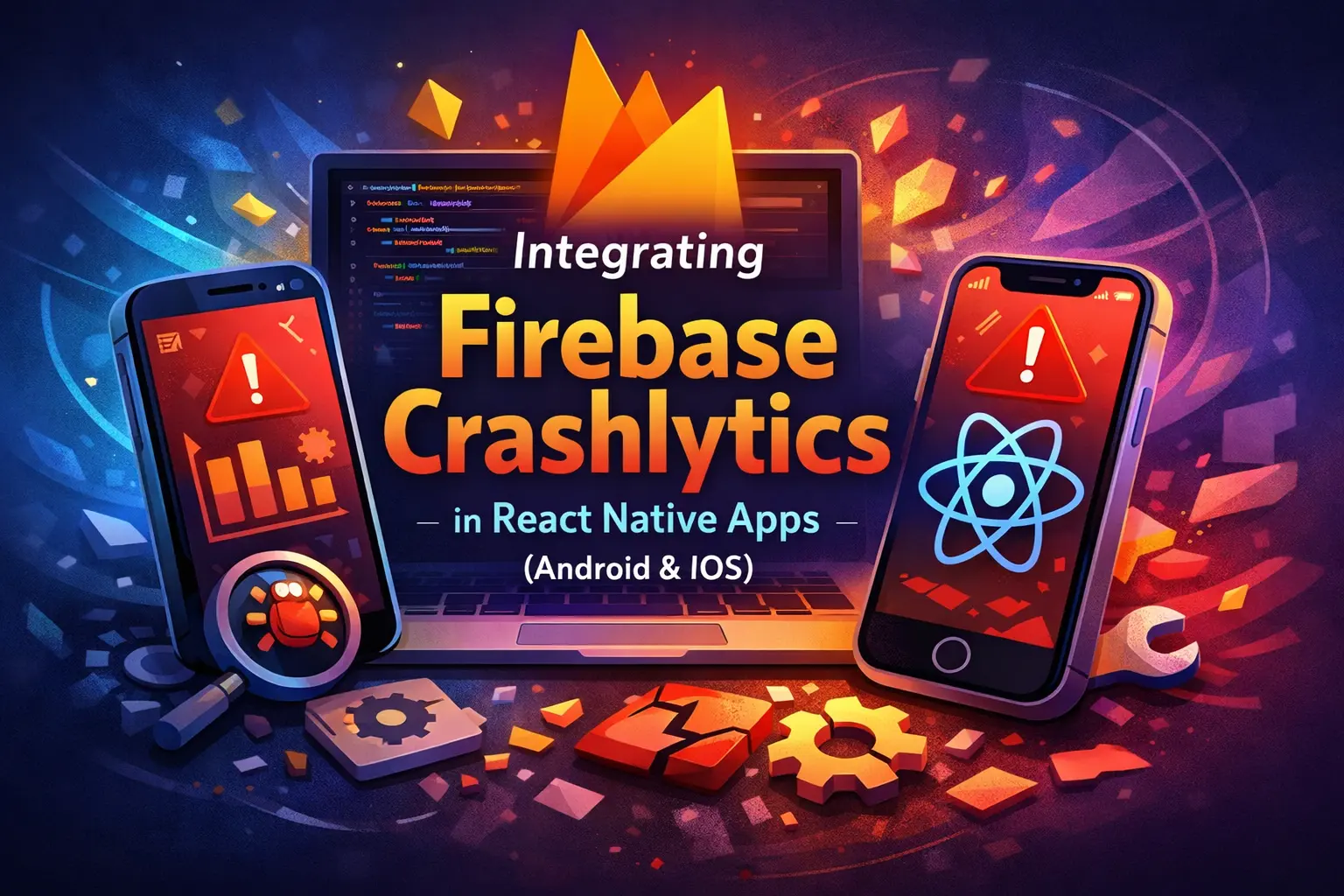
Crash reporting is non-negotiable for production mobile apps. Firebase Crashlytics gives you real-time crash reports with stack traces, device info, and user context — for free. This guide walks you through enabling Crashlytics in a React Native app on both Android and iOS, including optional but recommended patterns like a centralized service wrapper and a React Error Boundary.
This guide assumes Firebase is already added to your project — meaning you have `google-services.json` (Android), `GoogleService-Info.plist` (iOS), and @react-native-firebase/app installed and working. If not, follow our Android setup guide and iOS setup guide first.
Step 1 — Install the Crashlytics Package
Install the @react-native-firebase/crashlytics package:
yarn add @react-native-firebase/crashlytics
# or
npm install @react-native-firebase/crashlytics
Step 2 — Android Configuration
Android requires a few Gradle changes to enable the Crashlytics build plugin. This plugin handles symbol upload and mapping file generation so your crash stack traces are readable in the Firebase Console.
2.1 — Root build.gradle (Classpath)
Open android/build.gradle and add the Crashlytics Gradle plugin classpath inside `buildscript.dependencies`:
buildscript {
    repositories {
        google()
        mavenCentral()
    }
    dependencies {
        // ... your existing classpaths
        classpath("com.google.firebase:firebase-crashlytics-gradle:3.0.2")
        classpath("com.google.gms:google-services:4.4.2")
    }
}
2.2 — App-level build.gradle (Plugin + Dependencies)
Open android/app/build.gradle and make three changes:
A) Apply the Crashlytics plugin — add it near the top, after other `apply plugin` lines:
apply plugin: "com.android.application"
apply plugin: "org.jetbrains.kotlin.android"
apply plugin: "com.facebook.react"
apply plugin: "com.google.firebase.crashlytics"
apply plugin: "com.google.gms.google-services"
B) Enable mapping upload for release builds — inside the `android { buildTypes { release { } } }` block. This uploads ProGuard/R8 mapping files so Crashlytics can deobfuscate your stack traces:
buildTypes {
    release {
        // ... signingConfig, minifyEnabled, proguardFiles, etc.
        firebaseCrashlytics {
            mappingFileUploadEnabled true
        }
    }
}
C) Add the Crashlytics dependency — inside the `dependencies { }` block:
dependencies {
    // Firebase BoM (if not already present)
    implementation platform('com.google.firebase:firebase-bom:34.7.0')

    // Firebase Crashlytics
    implementation 'com.google.firebase:firebase-crashlytics'
}
Then clean the build:
cd android && ./gradlew clean && cd ..Step 3 — iOS Configuration
iOS setup is much simpler. Crashlytics is pulled in automatically by React Native Firebase via CocoaPods. Just install pods:
cd ios && pod install && cd ..The [CP-User] [RNFB] Crashlytics Configuration build phase (which handles dSYM upload) is added automatically by the RNFB pod. No extra Xcode steps required if Firebase is already set up in your iOS project.
Step 4 — Enable Crashlytics in Your App Entry
Open your App.tsx (or root component) and enable Crashlytics collection. It's best practice to only collect crash data in production builds — disable it in development to avoid noise in your dashboard:
import {
  getCrashlytics,
  setCrashlyticsCollectionEnabled,
  log,
} from '@react-native-firebase/crashlytics';

const crashlytics = getCrashlytics();

const App = () => {
  useEffect(() => {
    setCrashlyticsCollectionEnabled(crashlytics, !__DEV__);
    log(crashlytics, 'App started');
  }, []);

  return (
    // ... your app
  );
};
The !__DEV__ flag ensures Crashlytics only collects data in release builds. The `log()` call adds a breadcrumb that will appear in crash reports, helping you understand the user's journey leading up to a crash.
Step 5 — Create a Crashlytics Service (Recommended)
Rather than importing Crashlytics directly in every file, create a centralized service wrapper. This gives you a clean API and makes it easy to swap implementations or add middleware later.
Create src/services/crashlytics/crashlyticsService.ts:
import crashlytics from '@react-native-firebase/crashlytics';

export default {
  log: (msg: string) => crashlytics().log(msg),
  recordError: (err: Error) => crashlytics().recordError(err),
  setUserId: (id: string) => crashlytics().setUserId(id),
  clearUser: () => crashlytics().setUserId(''),
  setAttributes: (attrs: Record<string, string>) =>
    crashlytics().setAttributes(attrs),
  setAttribute: (key: string, value: string) =>
    crashlytics().setAttribute(key, value),
};
Create the barrel export at src/services/crashlytics/index.ts:
export * from './crashlyticsService';
export { default } from './crashlyticsService';
And export from your services index at src/services/index.ts:
export * from './crashlytics';
// ... other service exports
Step 6 — React Error Boundary with Crashlytics
React Error Boundaries catch JavaScript errors in the component tree. By default, these errors crash the app silently without reaching Crashlytics. By wiring an Error Boundary to your Crashlytics service, every React render error gets reported to the Firebase Console with full component stack traces.
Create src/components/ErrorBoundary.tsx:
import React, { Component, ErrorInfo, ReactNode } from 'react';
import { View, Text, TouchableOpacity, StyleSheet } from 'react-native';
import crashlyticsService from '../services/crashlytics';

interface Props {
  children: ReactNode;
  fallback?: ReactNode;
}

interface State {
  hasError: boolean;
  error: Error | null;
}

class ErrorBoundary extends Component<Props, State> {
  state: State = { hasError: false, error: null };

  static getDerivedStateFromError(error: Error): State {
    return { hasError: true, error };
  }

  componentDidCatch(error: Error, errorInfo: ErrorInfo): void {
    if (!__DEV__) {
      crashlyticsService.log(`React ErrorBoundary: ${error.message}`);
      crashlyticsService.setAttribute(
        'componentStack',
        (errorInfo.componentStack || '').slice(0, 1000),
      );
      crashlyticsService.recordError(error);
    }
  }

  handleReset = (): void => {
    this.setState({ hasError: false, error: null });
  };

  render(): ReactNode {
    if (this.state.hasError) {
      if (this.props.fallback) return this.props.fallback;
      return (
        <View style={styles.container}>
          <Text style={styles.title}>Oops! Something went wrong</Text>
          <Text style={styles.message}>
            {this.state.error?.message || 'An unexpected error occurred'}
          </Text>
          <TouchableOpacity style={styles.button} onPress={this.handleReset}>
            <Text style={styles.buttonText}>Try Again</Text>
          </TouchableOpacity>
        </View>
      );
    }
    return this.props.children;
  }
}

const styles = StyleSheet.create({
  container: { flex: 1, justifyContent: 'center', alignItems: 'center', padding: 20 },
  title: { fontSize: 18, fontWeight: 'bold', color: '#000' },
  message: { marginTop: 12, fontSize: 14, color: '#666', textAlign: 'center' },
  button: { marginTop: 24, paddingHorizontal: 32, paddingVertical: 12, backgroundColor: '#FF5722', borderRadius: 8 },
  buttonText: { color: '#fff', fontWeight: '600' },
});

export default ErrorBoundary;
Wrap your entire app (or a large subtree) in App.tsx:
import ErrorBoundary from './src/components/ErrorBoundary';

const App = () => (
  <ErrorBoundary>
    {/* rest of your app */}
  </ErrorBoundary>
);
Step 7 — Set User ID After Login
Associating a user ID with crash reports helps you identify which specific user was affected. This is invaluable for support tickets — when a user reports a crash, you can search for their ID in the Firebase Console and see exactly what happened.
import crashlyticsService from './src/services/crashlytics';

// After successful login
crashlyticsService.setUserId(user.id);

// On logout
crashlyticsService.clearUser();
Step 8 — Manual Logging and Error Recording
Use the Crashlytics service anywhere in your app to add breadcrumb logs, custom keys, and non-fatal error reports. These appear in the Firebase Console alongside crash data:
import crashlyticsService from './src/services/crashlytics';

// Breadcrumb log (shows in crash report timeline)
crashlyticsService.log('User opened TaskDetail screen');

// Custom key for debugging context
crashlyticsService.setAttribute('lastScreen', 'TaskDetail');

// Record a non-fatal error
try {
  // risky operation
} catch (e) {
  crashlyticsService.recordError(
    e instanceof Error ? e : new Error(String(e))
  );
}
File Locations Summary
Purpose                      | File path
-----------------------------|------------------------------------------
Root Gradle (classpath)      | android/build.gradle
App Gradle (plugin + deps)   | android/app/build.gradle
iOS pods                     | ios/Podfile (no change needed)
App entry (enable + log)     | App.tsx
Crashlytics service          | src/services/crashlytics/crashlyticsService.ts
Service barrel export        | src/services/crashlytics/index.ts
Error Boundary               | src/components/ErrorBoundary.tsx
Step 9 — Verify Crashlytics is Working
To verify the setup, trigger a test crash in your app. Add a temporary button that calls crashlytics().crash():
import crashlytics from '@react-native-firebase/crashlytics';

// Call this from a button press handler to force a test crash
crashlytics().crash();
Important: Test crashes only work in release builds. If you're using `setCrashlyticsCollectionEnabled(crashlytics, !__DEV__)`, debug builds won't send data. Build a release version, trigger the crash, relaunch the app, and check Firebase Console → Crashlytics. Events can take a few minutes to appear.
For Android, build a release APK or run in release mode. For iOS, build through Xcode with a Release configuration. After the crash, open the app again so the crash report gets uploaded on the next launch.
Remove the test crash code (or guard it with `__DEV__`) before publishing to production.
Best Practices
Disable in development — Use `!__DEV__` to avoid polluting your Crashlytics dashboard with debug crashes. Only collect data from release builds.
Always set user ID — This makes it trivial to find a specific user's crash history in the Firebase Console when they report issues.
Use breadcrumb logs liberally — Add `log()` calls at key navigation points and user actions. When a crash happens, the breadcrumb trail shows you exactly what the user was doing.
Record non-fatal errors — Not all errors crash the app. API failures, parsing errors, and edge cases should be recorded with `recordError()` so you can track their frequency and fix them proactively.
Wrap with Error Boundary — React errors in the render tree don't trigger native crash handlers. Without an Error Boundary wired to Crashlytics, you'll miss entire categories of bugs.
Related Articles

Integrate Firebase Cloud Messaging in React Native — Permissions, Tokens, Background & In-App UI
End-to-end guide: APNs key in Firebase, Xcode capabilities, @react-native-firebase/messaging + Notifee, Android 13+ permissions, saving FCM tokens to your backend, navigation on tap, and a Zustand-powered in-app notification banner.
How to Register an iOS App with Firebase in React Native (2026 Guide)
A complete step-by-step guide to adding Firebase to your React Native iOS app — from finding your Bundle ID in Xcode to configuring AppDelegate and verifying the setup.